
Whether you're jumping on back-to-back video calls or building a streaming setup from scratch, your webcam matters more than most people realise. A poor image can make you look unprofessional on a work call, or cost you viewers on a stream who'd rather watch someone who looks like they're actually in the room with them.
The good news is you don't need to spend a fortune to get a great result. You just need to know what to look for.
Resolution: More Than Just a Number
The first spec you'll see on any webcam listing is resolution, and it's usually where people start and stop their research. 1080p is the sweet spot for most people right now. It's sharp enough to look great on a video call or stream without demanding too much from your computer or internet connection.
4K webcams exist and they do look genuinely impressive, but they come with trade-offs. You'll need a solid internet connection to stream at that resolution, and most video call platforms cap quality well below 4K anyway, meaning you're often paying for resolution you'll never actually transmit.
For most streamers and remote workers, 1080p at a smooth frame rate will serve you better than 4K at a compromised one.
Frame Rate: Why 60fps Is Worth Caring About
Resolution gets all the attention, but frame rate is arguably just as important, especially for streamers.
Standard webcams run at 30 frames per second, which looks fine for a static talking head on a work call. But if you move around, gesture while you talk, or want that polished look that separates a hobbyist stream from a professional one, 60fps makes a noticeable difference. Motion looks smoother, everything feels more lifelike, and fast movements don't blur into a smear.
For remote work, 30fps is perfectly adequate. For streaming, if your budget allows, 60fps is worth the upgrade.
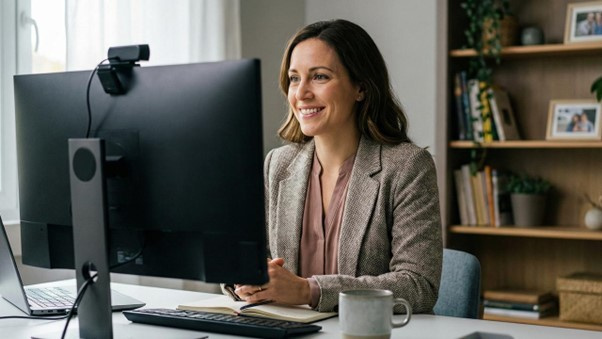
Field of View: How Much of the Room Do You Want to Show?
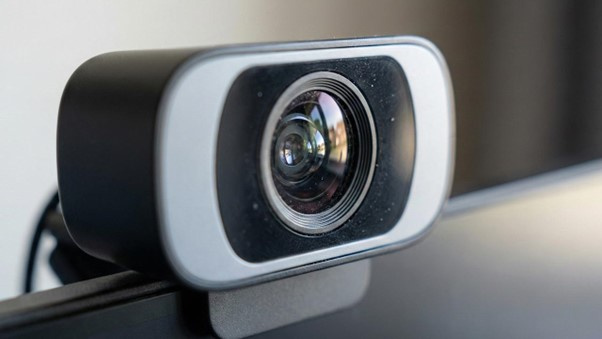
Field of view, or FOV, determines how wide the camera can see. A narrow FOV keeps the focus tight on your face. A wider FOV takes in more of your background and surroundings.
For remote work, a tighter FOV around 65 to 78 degrees is usually ideal. It keeps the focus on you and makes your background less of a concern if your home office isn't exactly tidy.
For streaming, wider can work well if you want viewers to see your setup or if you're doing something physical on camera. Just keep in mind that wider FOV can also introduce distortion around the edges, making the image look slightly warped if the lens quality isn't up to scratch.
Some webcams now offer an adjustable FOV, which is a genuinely useful feature if you want flexibility across different uses.
Low-Light Performance: The Spec That Makes or Breaks the Image
This is the one most buyers overlook, and it's often the reason a webcam that looks great in a showroom looks dreadful at home.
Most rooms, particularly home offices or gaming setups, are not evenly or brightly lit. Webcams with poor low-light performance compensate by cranking up digital noise, which gives your image a grainy, washed-out look. Good low-light performance means the camera can pull in more detail with less light, keeping your image cleaner without requiring you to sit under studio lights.
Look for webcams that mention larger sensor sizes, good aperture ratings (lower f-numbers mean more light comes in), and ideally some form of light correction or HDR processing. Real-world low-light sample footage on review sites and YouTube will tell you far more than any spec sheet here.
Autofocus: Helpful or Annoying, Depending on Quality
Autofocus sounds like a no-brainer feature, but cheap autofocus implementations are actually worse than fixed-focus cameras. If the autofocus is slow or hunting constantly, you'll end up with a camera that keeps refocusing mid-call, momentarily blurring your face every time you shift in your seat.
Good autofocus, the kind found on higher-end webcams, locks on quickly and stays there unless you move significantly. For streamers who might move around their desk or step away from the camera briefly, quality autofocus is worth prioritising. For remote workers who sit fairly still, a sharp fixed-focus camera at the right distance can actually be a more reliable choice.
Built-in Microphone: Convenient, But Know the Limitations
Almost every webcam comes with a built-in microphone, and almost every one of them is a compromise. They'll get the job done for casual video calls, but they pick up room echo, keyboard noise, and background sounds in a way that a dedicated microphone simply doesn't.
For remote work, a webcam mic is often acceptable. Most platforms have noise suppression built in now, which helps considerably. For streaming, if audio quality matters to you or your audience, a dedicated USB or XLR microphone will make a more noticeable difference to your production value than almost any other upgrade.
Think of the webcam mic as a backup rather than a primary audio solution.
Mounting and Compatibility
It sounds basic, but it's worth checking. Most webcams clip onto a monitor or laptop screen, which works fine for the majority of setups. If you have an ultrawide monitor, a curved screen, or want to position the camera somewhere unusual, check whether the mount can actually accommodate that.
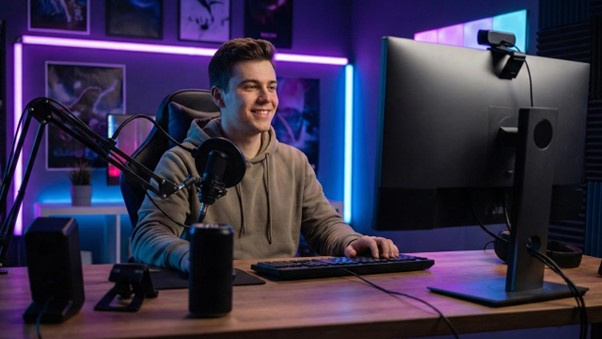
For streamers, a standard tripod thread on the bottom of the webcam opens up a lot of positioning options, letting you mount it on a desk arm or tripod for a more creative angle.
Also confirm the webcam works natively with your operating system without requiring proprietary software. Most modern webcams are plug-and-play, but some companion apps are worth avoiding altogether, while others add genuinely useful features like zoom control, exposure adjustment, and colour tuning.
Privacy Shutter: Small Feature, Big Peace of Mind
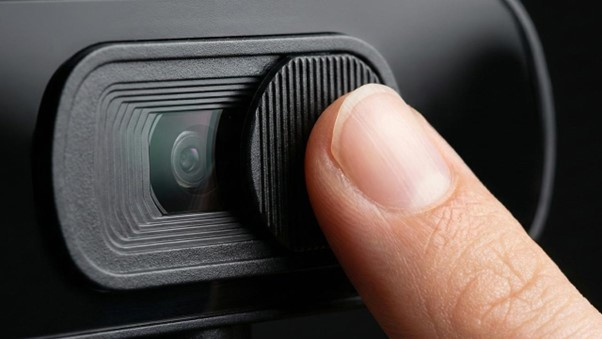
An increasing number of webcams now include a physical privacy shutter, either a sliding cover or a lens cap built into the design. For anyone who spends a lot of time at their desk, this is a small but genuinely reassuring feature. It means the camera is physically blocked when not in use, no software required, no settings to check.
It won't affect your image quality one way or the other, but if privacy matters to you, it's worth looking for.
So, What Should You Actually Buy?
The honest answer depends on what you're doing. For remote work on a budget, a 1080p webcam with decent low-light performance and a reasonable FOV will cover everything you need. For streaming, prioritise 1080p at 60fps, invest in a separate microphone if audio matters to your content, and spend a bit more to get reliable autofocus and better low-light capability.
The single biggest improvement most people can make, regardless of which webcam they choose, is sorting out their lighting first. A ring light or a well-positioned desk lamp pointing at your face will do more for how you look on camera than doubling your webcam budget.