The Logitech MX Creative Console is designed to make creative work more efficient, and while it is clearly aimed at photo, video, and audio editors, it can easily suit a much wider range of users depending on how you choose to integrate it into your workflow.
With fully customisable LCD keys and a dedicated dial, it's incredibly flexible and offers a range of possibilities. Whether you want to keybind shortcuts or use app specific controls there’s a lot on offer here, all while also delivering a premium feel and maintaining an accessible price.
For anyone wanting extra controls on their desk, without committing to professional grade hardware, it’s a solid option.
| PROS | CONS |
|---|---|
|
|
Price and Competition
The MX Creative Console costs $230. It's most certainly a niche device and doesn’t have much competition other than the similar-ish, $319 Elgato Stream Deck Plus, $239 Elgato Stream Deck MK.2 and the $147 Elgato Stream Deck Neo. None of those competitors have the dedicated dial though.
Design
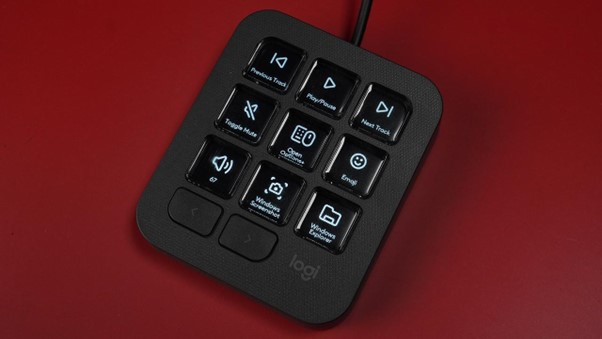
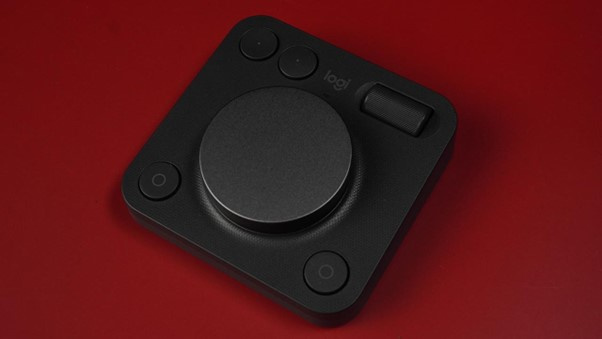
The MX Creative Console is split into two modules: a wired, USB-C keypad and a wireless dialpad that connects over Bluetooth to your PC or Mac. The keypad contains nine fully customisable LCD keys and requires a constant power source to keep them bright and responsive. It also comes with a small stand that props it up at an angle, making the keys easier to see and reach.
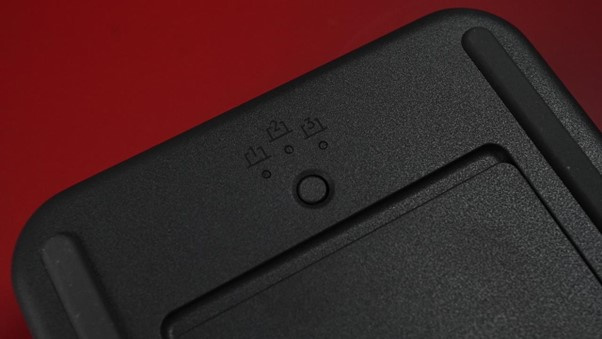
The dialpad, by comparison, is wireless simply because it draws far less power, and it gives you a bit more flexibility in where you place it on the desk. It uses 2x AAA batteries which you will have to change now and again, which can be a bit annoying, but it's fine, it lasts long enough you don’t really have to think about it.
This is not a controller designed to sit on opposite sides of your keyboard, It’s meant to be used in conjunction with your existing accessories, and it definitely takes some getting used to. Now of course you can use it however you want, but you’re supposed to keep your dominant hand on your mouse and your other hand on the Console, switching between the dial and keypad when you need to. After a few hours of practice it works well and can speed up your workflow.
I would have liked the dialpad to feel a little more weighted, but it is not a major issue. The small footprint of both modules means they fit easily into most workspaces without taking up too much room. The only thing worth planning around is the cable for the keypad. Because it needs to remain wired, you may want to think about where it will sit permanently, while the Bluetooth dialpad can be placed almost anywhere.
Both pieces have a plasticky build but they feel solid enough. The look matches the premium style of the MX Master range, and the black review unit we tested looked clean and modern. A white version is also available if you prefer a brighter desk setup.
Keypad
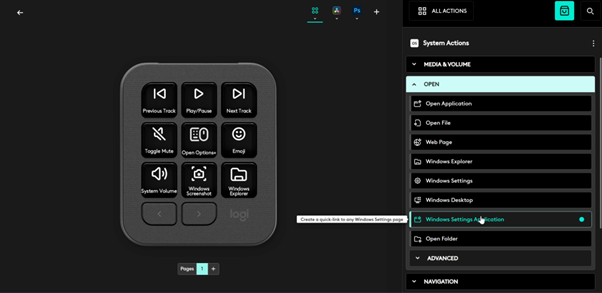
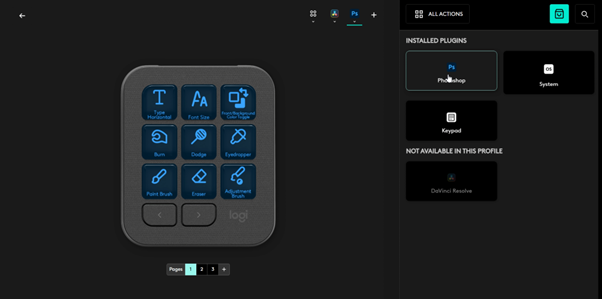
The nine LCD keys are the heart of the Console and are its best feature. When you open supported applications such as Photoshop, Premiere Pro, After Effects, DaVinci Resolve, and more, each key updates automatically to match the tools in that program. This can include brush tools, layer operations, grading tools, timeline shortcuts, and loads more. All of this can be changed to suit your personal workflow through the Logi Options+ app, for example, if you don’t really use the brush tools in Photoshop, you can easily change it to something you do use like the Lasso tool.
The biggest strength here is how deeply you can customise the keys. Every key can be assigned to a shortcut, macro, media control, or system action. If you want all nine keys to trigger Voicemod sound effects, it can do that. If you prefer a full panel of grading tools for Resolve or timeline controls for Premiere Pro, you can create those layouts. You can even customise the text, icons, and colours on each key to make everything visually clear. The setup takes time, but once it is configured properly, the Console can become a genuinely helpful part of your workflow.
You are not limited to a single page of controls either. You can have up to fifteen pages per profile, giving you as many as 135 different bindings for each application. On top of that, you can create multiple profiles. In my own setup, for example, I have a profile for Photoshop, one for general Windows use, one for DaVinci Resolve, and another for Voicemod, and I can quickly switch between them with a single button press.
Dial
The dialpad is the second half of the MX Creative Console and is designed to give you hands-on, analog-style control without adding extra cables to your desk. Logitech’s intention is for it to work alongside your mouse rather than replace it, so you control the dialpad with one hand while your dominant hand stays on the mouse.
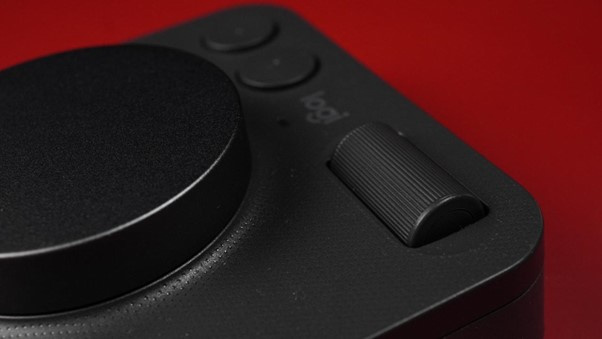
In the middle of the dialpad is the main dial. It is fully free-spinning, which gives it a smooth, frictionless feel when you scroll through tools or move along a timeline. It works well for broad adjustments, but because it is not notched, very small or precise movements take a little more care. In an ideal world, it would have been great to be able to switch between free-spin and notched modes for different kinds of work, but even as it is, the dial remains a useful and responsive control point.
Just above the main dial is a vertical roller. This offers a different style of movement, and it is particularly helpful for zooming or making more incremental adjustments when you need finer control. The roller is smooth, easy to reach, and feels natural to use alongside the main dial.
Around these controls are four physical buttons. These sit comfortably under your fingers and can be mapped to anything you want. Their placement makes them ideal for actions you use regularly, such as undo, redo, switching tools, or toggling between modes.
Software/App
The MX Creative Console performs extremely well for popular software. In Photoshop, the response is instant, DaVinci Resolve is equally strong, with smooth timeline control and precise colour grading adjustments using the dial and there’s a lot more. In these applications, the Console can speed up your editing process.
But this isn’t always the case. Some apps do not have full plugin-level integration so if you have a more peculiar software you want to use with this, it might pay to see if it's compatible beforehand.
Frustratingly some apps that do have full integration don’t work well or sometimes at all. Spotify is a good example of this, you can assign controls like playing certain playlists, favouriting songs and changing the volume however, during testing I couldn’t get this to work at all.
The good news is most of the time there is a workaround. And that’s thanks to the flexibility of the Logi Options+ app. For example, I couldn’t get the native Voicemod integration to work either. Instead I bound F16 through to F24 on the keypad and then set the keybinds within the Voicemod and it works well. It does take a lot more time and you do have to find some keys you don’t regularly use on your keyboard but if you have the time, most of the time, you can get the Creative Console to do what you want.
Verdict
The Logitech MX Creative Console is a powerful tool with the potential to enhance your workflow in a meaningful way, especially when you are working inside software that supports it properly. In applications like Photoshop and DaVinci Resolve, where the native integration is strong, the Console feels fast, responsive, and genuinely useful. The combination of customisable LCD keys, multiple pages, and a dedicated dial gives you a level of hands-on control that can make creative work feel smoother and more efficient.
It does have limitations. Some app integrations simply do not work as expected, and a few programs are not supported at all. Even apps that technically offer native integration, such as Spotify, may not function reliably. This can be frustrating, and it is worth knowing before you buy it. The upside is that the Console’s customisation options are extremely flexible, and with enough time in Logi Options+, you can often create your own solutions through custom keybinds and shortcuts. It takes effort, but the option is there if you want to tailor it deeply to your workflow.
Almost sitting in a niche of its own, it delivers a premium feel, strong performance in supported apps, and impressive flexibility at an accessible price. If you want more control on your desk and you are prepared to spend some time setting it up to suit your software, it is a capable and worthwhile addition to almost any creative workspace.